
Generate Barcodes in Excel using Aeromium Barcode Fonts
TechnoRiver partners with Aeromium to resell its high quality and professional barcode fonts
The Aeromium barcode technology is implemented using TrueType fonts, and as such, allows barcodes to be treated as text in Excel and many other applications. This results in many advantages compared with graphics-based barcodes. For example, you could simultaneously change the size of multiple barcodes in a column of cells by selecting them and changing the font size.
Aeromium Barcode Fonts includes a complete set of Excel formulas for generating barcodes in Excel easily. These formulas will convert a raw data string into a format suitable for a barcode font.
Installing the Barcode Fonts Excel Formulas
For Excel 2002/2003
- Launch Microsoft Excel.
- Go to Tools > Add-Ins from the menu.
- Click on the Browse button.
- Navigate to the "formulas" directory ("C:\Program Files\Aeromium\formulas")
- Select the "Aeromium Barcode Fonts.xla" Add-In file
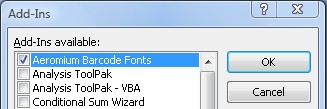
- Click on the OK button to install the add-in. You should be able see the dialog as below.
For Excel 2007
- Launch Microsoft Excel.
- Click on the Office Icon button.

- Click on Excel Options.
- In the Excel Options dialog, click the Add-Ins item.
- Click the Browse button.
- Navigate to the "formulas" directory ("C:\Program Files\Aeromium\formulas")
- Select the "Aeromium Barcode Fonts.xla" Add-In file
- Click on the OK button to install the Add-In. You should be able see the dialog as below.
Excel Security Settings
If you are having problems running Aeromium Excel Formulas, make sure you have setup Excel Security Settings properly.
- Launch Microsoft Excel.
- Click on Tools > Macro > Security
- Set the security level to Medium
Using the Excel Formulas
Example Code 39 Barcode
- Make sure the Aeromium Barcode Fonts package and Barcode Fonts Excel Add-In are properly installed as described above.
- Launch Microsoft Excel.
- In your Excel spreadsheet, key in the data "12345678" in cell A2.
- The barcode will be created and placed in the adjacent column.
- In cell B2, key in "=AeroCode39(A2)", and press the Enter key.
- You will see the string "*12345678*" generated in cell B2.
- Change the font of cell B2 to FontCode39H3. You can repeat the steps above for cell A3 and A4.
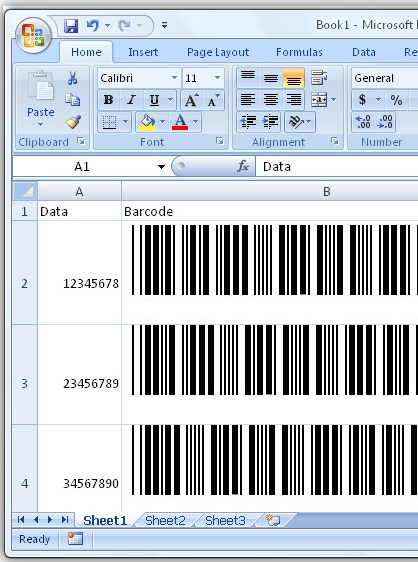
The example above shows the encodation of a Code 39 barcode. The Aeromium package includes many other formulas and fonts for different barcode symbologies.
The table below provides a complete list.
Complete List of Barcode Excel Formulas
| Barcode | Excel Formula | Parameters | Barcode Fonts |
| Code 128 Auto | AeroCode128Auto |
Parameter 1 - Data value to be encoded
|
FontCode128H1 FontCode128H2 FontCode128H3 FontCode128H4 FontCode128H5 FontCode128H6 |
| Code 128A | AeroCode128A |
Parameter 1 - Data
|
FontCode128H1 FontCode128H2 FontCode128H3 FontCode128H4 FontCode128H5 FontCode128H6 |
| Code 128B | AeroCode128B |
Parameter 1 - Data
|
FontCode128H1 FontCode128H2 FontCode128H3 FontCode128H4 FontCode128H5 FontCode128H6 |
| Code 128C | AeroCode128C | Parameter 1 - Data | FontCode128H1 FontCode128H2 FontCode128H3 FontCode128H4 FontCode128H5 FontCode128H6 |
| Code39 | AeroCode39 |
Parameter 1 - Data Parameter 2 - Check Digit. 1 for Yes, 0 for No. |
FontCode39H1 FontCode39H2 FontCode39H3 FontCode39H4 FontCode39H5 FontCode39H6 |
| Code39 Extended | AeroCode39Extended |
Parameter 1 - Data Parameter 2 - Check Digit. 1 for Yes, 0 for No. |
FontCode39H1 FontCode39H2 FontCode39H3 FontCode39H4 FontCode39H5 FontCode39H6 |
| EAN8 | AeroEAN8 |
Parameter 1 - Data
(Note : Parameter for specifying Extended Style is not required. If you require the Extended Style, simply choose the Extended Style font.) |
Standard Style FontCodeEANH1 FontCodeEANH2 FontCodeEANH3 FontCodeEANH4 FontCodeEANH5 FontCodeEANH6 Extended Style FontCodeEANEH1 FontCodeEANEH2 FontCodeEANEH3 FontCodeEANEH4 FontCodeEANEH5 FontCodeEANEH6 |
| EAN13 / ISBN / ISSN | AeroEAN13 |
Parameter 1 - Data
Parameter 2 - Extended Style. 1 for Yes, 0 for No. If set to 1, please remember to set to the Extended Style font. |
Standard Style FontCodeEANH1 FontCodeEANH2 FontCodeEANH3 FontCodeEANH4 FontCodeEANH5 FontCodeEANH6 Extended Style FontCodeEANEH1 FontCodeEANEH2 FontCodeEANEH3 FontCodeEANEH4 FontCodeEANEH5 FontCodeEANEH6 |
| Extension 2 (EXT2) | AeroEXT2 | Parameter 1 - Data | FontCodeEANH1 FontCodeEANH2 FontCodeEANH3 FontCodeEANH4 FontCodeEANH5 FontCodeEANH6 |
| Extension 5 (EXT5) | AeroEXT5 | Parameter 1 - Data | FontCodeEANH1 FontCodeEANH2 FontCodeEANH3 FontCodeEANH4 FontCodeEANH5 FontCodeEANH6 |
| Interleaved 2 of 5 (I2of5) | AeroI2of5 |
Parameter 1 - Data
Parameter 2 - Check Digit. 1 for Yes, 0 for No. |
FontCodeI2of5H1 FontCodeI2of5H2 FontCodeI2of5H3 FontCodeI2of5H4 FontCodeI2of5H5 FontCodeI2of5H6 |
| Industrial 2 of 5 | AeroIndustrial2of5 |
Parameter 1 - Data
Parameter 2 - Check Digit. 1 for Yes, 0 for No. |
FontCodeINT2of5H1 FontCodeINT2of5H2 FontCodeINT2of5H3 FontCodeINT2of5H4 FontCodeINT2of5H5 FontCodeINT2of5H6 |
| ITF14 | AeroITF14 |
Parameter 1 - Data
Parameter 2 - Check Digit. 1 for Yes, 0 for No. Parameter 3 - Bearers Bar. 1 for Rectangle, 0 for Top/Bottom. |
FontCodeITF14H1 FontCodeITF14H2 FontCodeITF14H3 FontCodeITF14H4 FontCodeITF14H5 FontCodeITF14H6 |
| Modified Plessy | AeroModifiedPlessy |
Parameter 1 - Data
Parameter 2 - Check Digit. 1 for Yes, 0 for No. |
FontCodeMPH1 FontCodeMPH2 FontCodeMPH3 FontCodeMPH4 FontCodeMPH5 FontCodeMPH6 |
| POSTNET | AeroPOSTNET | Parameter 1 -Data | FontCodePOSTNET |
| UPCA | AeroUPCA |
Parameter 1 - Data
Parameter 2 - Extended Style. 1 for Yes, 0 for No. |
Standard Style FontCodeUPCH1 FontCodeUPCH2 FontCodeUPCH3 FontCodeUPCH4 FontCodeUPCH5 FontCodeUPCH6 Extended Style FontCodeUPCEH1 FontCodeUPCEH2 FontCodeUPCEH3 FontCodeUPCEH4 FontCodeUPCEH5 FontCodeUPCEH6 |
| UPCE | AeroUPCE |
Parameter 1 - Data
Parameter 2 - Extended Style. 1 for Yes, 0 for No. |
Standard Style FontCodeUPCH1 FontCodeUPCH2 FontCodeUPCH3 FontCodeUPCH4 FontCodeUPCH5 FontCodeUPCH6 Extended Style FontCodeUPCEH1 FontCodeUPCEH2 FontCodeUPCEH3 FontCodeUPCEH4 FontCodeUPCEH5 FontCodeUPCEH6 |
| UCCEAN | AeroUCCEAN | Parameter 1 - Data value to be encoded e.g. (00)123456789012 345675(12)101E | FontCode128H1 FontCode128H2 FontCode128H3 FontCode128H4 FontCode128H5 FontCode128H6 |