TechnoRiverStudio
SmartCodeDrivers
SmartCodeComponent
SmartCodeDeveloper
SmartCodeWebControl
Free Barcode Software
TechnoRiver MICR Font
TechnoRiverGraphics
Barcode Font
Using Aeromium Barcode Fonts In Crystal Reports
TechnoRiver partners with Aeromium to resell its high quality and professional barcode fonts
Aeromium Barcode Fonts is bundled with Crystal Reports Formulas to help you create barcodes easily. This tutorial is specially designed to get you started in generating barcodes within your reports.
Prerequisites
1. Ensure the appropriate Aeromium Barcode Fonts and Crystal Reports are installed.
Note - The trial version of Aeromium may also be used in this tutorial.
2. Launch Crystal Reports from Windows Start Menu. Create a new report or use your existing report for the following steps.
Tutorial
1. In the Field Explorer, create a new formula by right-clicking Formula Fields and select the New item in the context menu.
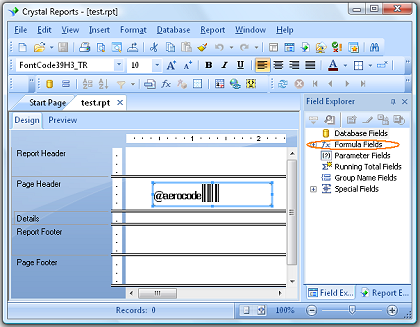
Note - If you cannot see the Field Explorer, click on the menu View->Field Explorer in Crystal Report.
2. Name your formula aerocode39
3. You will now be in the Formula Workshop - Formula Editor. Change the syntax from "Crystal Syntax" to "Basic Syntax".
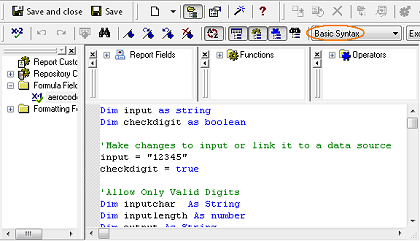
4. Copy and paste the barcode formula from the AeromiumBarcodeFormulasForCrystalReport.txt file to the Crystal Report's Formula Editor. This text file can be found in the CrystalReports subdirectory of Aeromium Barcode Fonts.
The table below shows the barcode and their corresponding formulas in the AeromiumBarcodeFormulasForCrystalReport.txt text file.
| Symbology | Formulas |
| Code 128 A | AeroCode128 A |
| Code 128 B | AeroCode128 B |
| Code 128 C | AeroCode128 C |
| Code 128 Auto | AeroCode128 Auto |
| Code 39 | AeroCode39 |
| Code39 Extended | AeroCode39 Extended |
| EAN13 | AeroEAN13 |
| EAN8 | AeroEAN8 |
| EXT2 | AeroEXT2 |
| EXT5 | AeroEXT5 |
| I2of5 | AeroI2of5 |
| Industrial 2of5 | AeroIndustrial2of5 |
| ITF14 | AeroITF14 |
| Modified Plessy | AeroModifiedPlessy |
| POSTNET | AeroPOSTNET |
| UCCEAN (GS1 128) | AeroUCCEAN |
| UPCA | AeroUPCA |
| UPCE | AeroUPCE |
5. Modify the statement data = "12345" to encode the specific data or alternatively set it to a data source field.
6. Save the formula and drag it to your report to create a formula field.
7. Set the font of the formula field to the appropriate barcode font. For example, for Code 39, the font will be FontCode39H3.
Note - The font preview in the drop down list of Crystal Reports may appear as barcodes instead of displaying FontCode39H3.
Back to Aeromium
|

















 TechnoRiverStudio
is one of the most innovative and productive label design and
print tools available. It is currently being used by
many Fortune 500 companies including hospitals, universities,
manufacturers, retailers, municipalities, and government
institutions in many different countries around the
world.
TechnoRiverStudio
is one of the most innovative and productive label design and
print tools available. It is currently being used by
many Fortune 500 companies including hospitals, universities,
manufacturers, retailers, municipalities, and government
institutions in many different countries around the
world.